WELCOME

for any suggestion's please mail to this id:

nanduriraja537@gmail.com,raja.mic539@gmail.com

Monday, July 11, 2011

Innovative Gadgets To Make Life Easy Wall Light

Innovative Gadgets To Make Life Easy

Wall Light

Innovative Gadgets To Make Life Easy

USb Extender – Always Need More Ports

Innovative Gadgets To Make Life Easy

Taking The Dog For A Walk

Innovative Gadgets To Make Life Easy

Strong Dogs

Innovative Gadgets To Make Life Easy

See Thru Toaster

Innovative Gadgets To Make Life Easy

Oreo Cookie Holder

Innovative Gadgets To Make Life Easy

Keyboard Sandwich and Cup Holder

Innovative Gadgets To Make Life Easy

Key Holder

Innovative Gadgets To Make Life Easy

Ipod Docking Phone

Innovative Gadgets To Make Life Easy

Hands Free Sandwich Holder

Innovative Gadgets To Make Life Easy

Cool Calendar

Innovative Gadgets To Make Life Easy

Cookie Dunker

Innovative Gadgets To Make Life Easy

Clothes Holder If You Don’t Like To Clean

Innovative Gadgets To Make Life Easy

Chilling With The Family

Innovative Gadgets To Make Life Easy

Bar B Q Grill

Top 10 open source Windows apps


Geek to Live: Top 10 open source Windows apps

Companies like Google and Microsoft give away free software as a courtesy to their users to hook more people on their services ("free as in beer.") But open source organizations are often non-profit and made up of volunteer developers who release free software because they believe users have a right to control their data ("free as in speech.")

Open source roots are in the Unix operating system, but these days many "free as in speech" applications are available for Windows as well - and today I've got a list of my top 10 favorites.

None of these cost a dime to download and use, but do donate whatever and whenever you can to the projects that benefit you the most.

1. Mozilla Firefox (Web browser)

Crikey, another Firefox plug! Yeah, we love the 'fox, and we'll keep talking about it until EVERY SINGLE ONE OF YOU USES IT. It really just doesn't get any better when it comes to a cross-platform, open source web browser.

2. Mozilla Thunderbird (Email client)

Firefox's much less celebrated little brother is one helluva email client. We especially like its customizable message filters, built-in adaptive Junk mail filter and ability to install useful add-ons (like Firefox).

3. Open Office (Office suite)

Used to be that anyone who wanted to open a Word document had to drop a few Benjamins on Microsoft Office or risk pirating it. No more - Open Office is a free alternative to M$ Office for students, freelancers and poor people just wanting to save their spreadsheet as an .xls.

4. Gaim (Instant messenger)

Chat on any service you'd like - AIM, Yahoo! Messenger, MSN, Jabber, ICQ - with this multi-platform, tabbed IM client.

5. ClamWin (Antivirus)

Norton bugging you again to break out the credit card and subscribe? Uninstall! ClamWin is free anti-virus software with automatic updates and scheduled scans, no credit card required.

6. VLC Media Player (Audio/video player)

Got a video or audio file Windows Media Player or Quicktime can't play? Betcha VLC can.

7. KeePass (Password manager)

Another app you really don't hear a lot about, but for anyone with more than 6 different passwords, KeePass is indispensable. Check out my previous feature, Securely track your passwords for more on using KeePass.

8. Cygwin (Unix command line emulator)

That DOS command line just doesn't cut it. Wanna turn into a CLI ninja on your PC? You need Cygwin.

9. Eraser (Data deletion utility)

Before you donate, sell or trash your hard drive, you want to make sure there are no traces of your naughty private data on it. Eraser uses the same algorithm the government uses to wipe your hard drive clean.

10. TrueCrypt (File encryption utility)

You've got a folder full of files you don't want anyone to access but you. Lock it (or an entire thumb drive) up with the free TrueCrypt software.

Top 10 Windows Built-In Command Line Tools


winlogo.jpgFor many Windows users, the thought of using the Command Prompt is either a scary experience or something that they will never need. But for some, the command prompt is a powerful tool that can be far more useful than many graphical tools available in Windows.

Being a System Administrator, I constantly use the command prompt, mostly because I access systems remotely and many tasks can be performed quickly with out the graphics over head (even though connecting via Terminal Server is very convenient).

So if you are an avid user of the command line, here are my top 10 built-in (non third party) command line tools for XP, Vista and WIndows server versions (remember these commands are not your typical tools, such as find, copy, move, dir, etc..).

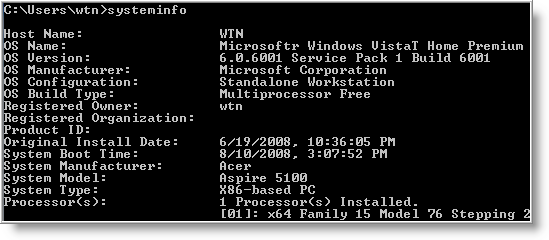
1 - systeminfo - Have a need to display operating system configuration information for a local or remote machine, including service pack levels? Then systeminfo is the tool to use. When I need to connect to a system that I am not familiar with, this is the first tool I run. The output of this command gives me all the info I need including: host name, OS type, version, product ID, install date, boot time and hardware info (processor and memory). Also knowing what hot fixes are installed can be a big help when troubleshooting problems. This tool can be used to connect to a machine remotely using the following syntax: SYSTEMINFO /S system /U user

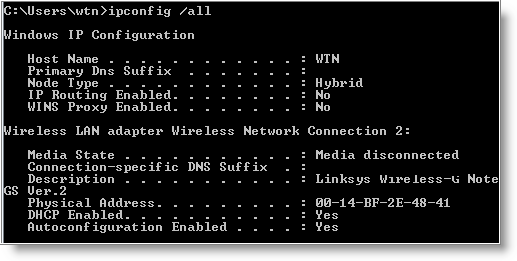
2 - ipconfig - This tool may be most useful tool for viewing and troubleshooting TCP/IP problems. It's capability includes release or renew an adapter IP Address, display and flush DNS cache, re-register the system name in DNS. WIth Vista and some server versions, ipconfig includes support for IPv6.

Some examples when usinging ipconfig.

  • To view all TCP/IP information, use: ipconfig /all
  • To view the local DNS cache, use: ipconfig /displaydns
  • To delete the contents in the local DNS cache, use: ipconfig /flushdns

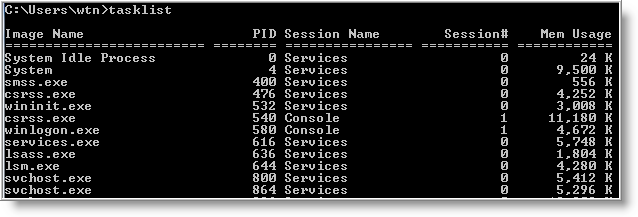
3 - tasklist and taskkill - If you are used to Windows Task Manager, then you'll find tasklist very easy to use. This tool displays a list of currently running processes, including image name, PID (Process ID) and memory usage on local or remote machines. Using the /V switch displays more information in verbose mode that includes, CPU Time, user name, and modules. Tasklist includes a filter option to display a set of task based on the criteria specified. But the best use of the filter is using it to display programs running inside svchost.exe process.

Of course, there will be times when a process needs to be killed and taskkill can be used to terminate those trouble processes. A single or multiple processes can be killed using the PID (/PID ) or image name (/IM ). Here are two examples for doing just that:

TASKKILL /IM notepad.exe
TASKKILL /PID 1230 /PID 1241 /PID 1253 /T

Both tasklist and taskkill can connect to remote systems using the /S (system name) /U (user name) switches.

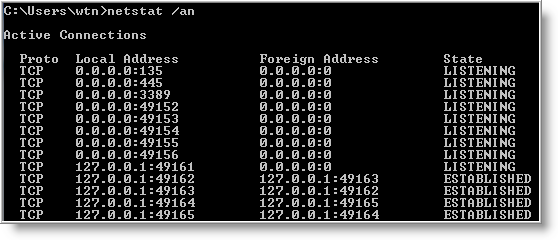
4 - netstat - Need to know who (or what) is making a connection to your computer? Then netstat is the tool you want to run. The output provides valuable information of all connections and listening ports, including the executable used in the connections. In additon to the above info, you can view Ethernet statistics, and resolve connecting host IP Addresses to a fully qualified domain name. I usually run the netstat command using the -a (displays all connection info), -n (sorts in numerical form) and -b (displays executable name) switches.

5 - type - A lesser known tool to those who don't work with the command prompt. For Administrators, the type command is the perfect tool for viewing text files. But what many people don't know about the type tool, is it's capability to read multiple files at once. For example to view multiple text files, just separate each file with a space:

type firstfile.txt secondfile.txt thirdfile.txt

For files that are large, you can control text scrolling using the more command.

6 - net command - Although this tool is more known as a command, the net command is really like a power drill with different bits and is used to update, fix, or view the network or network settings.

It is mostly used for viewing (only services that are started), stopping and starting services:

    • net stop server
    • net start server
    • net start (display running services)

and for connecting (mapping) and disconnecting with shared network drives:

    • net use m: \\myserver\sharename
    • net use m: \\myserver\sharename /delete

Other commands used with net command are, accounts (manage user accounts), net print (manage print jobs), and net share (manage shares).

Below are all the options that can be used with the net command.

[ ACCOUNTS | COMPUTER | CONFIG | CONTINUE | FILE | GROUP | HELP |HELPMSG | LOCALGROUP | PAUSE | PRINT | SESSION | SHARE | START |STATISTICS | STOP | TIME | USE | USER | VIEW ]

To display the complete syntax for each command, just type net help followed by the command - net help use .

7 - nslookup - With the Internet, DNS (Domain Name Service) is the key for allowing us to use friendly names when surfing the web instead of needing to remember IP Addresses. But when there are problems, nslookup can be a valuable tool for testing and troubleshooting DNS servers.

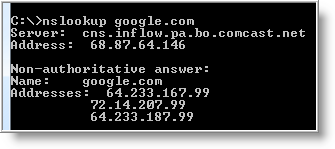
Nslookup can be run in two modes: interactive and noninteractive. Noninteractive mode is useful when only a single piece of data needs to be returned. For example, to resolve google.com:

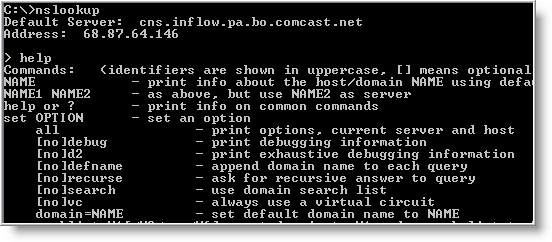
To use the interactive mode, just type nslookup at the prompt. To see all available options, type help while in interactive mode.

Don't let the help results intimidate you. Nslookup is easy to use. Some of the options I use when troubleshooting are:

set ds (displays detailed debugging information of behind the scenes communication when resolving an host or IP Address).

set domain (sets the default domain to use when resolving, so you don't need to type the fully qualified name each time).

set type (sets the query record type that will be returned, such as A, MX, NS)

server NAME (allows you to point nslookup to use other DNS servers than what is configured on your computer)

To exit out of interactive mode, type exit .

8 - ping and tracert - These tools can be helpful with connectivity to other systems. Ping will test whether a particular host is reachable across an IP network, while tracert (traceroute) is used to determine the route taken by packets across an IP network.

To ping a system just type at the prompt: ping www.google.com. By default, ping will send three ICMP request to the host and listen for ICMP “echo response” replies. Ping also includes switches to control the number of echo requests to send (-n ), and to resolve IP addresses to hostname (-a ).

To use tracert, type at the prompt: tracert www.google.com. You can force tracert to not resolve address to hostnames by using the -d switch, or set the desired timeout (milliseconds) for each reply using -w switch.

9 - gpresult - Used mostly in environments that implement group poicies, gpresults (Group Policy Results) verifies all policy settings in effect for a specific user or computer. The command is simple to use, just enter gpresults at the prompt. It can also be used to connect to computers remotely using the /S and /U switches.

10 - netsh - Without a doubt the most powerful command line tool available in Windows. Netsh is like the swiss army knife for configuring and monitoring Windows computers from the command prompt. It capabilities include:

  • Configure interfaces
  • Configure routing protocols
  • Configure filters
  • Configure routes
  • Configure remote access behavior for Windows-based remote access routers that are running the Routing and Remote Access Server (RRAS) Service
  • Display the configuration of a currently running router on any computer

Some examples of what you can do with netsh:

  • Enable or disable Windows firewall:

netsh firewall set opmode disable

netsh firewall set opmode disable

  • Enable or disable ICMP Echo Request (for pinging) in Windows firewall:

netsh firewall set icmpsetting 8 enable

netsh firewall set icmpsetting 8 disable

  • Configure your NIC to automatically obtain an IP address from a DHCP server:

netsh interface ip set address "Local Area Connection" dhcp

(For the above command, if your NIC is named something else, use netsh interface ip show config and replace the name at Local Area Connection).

As you can see netsh can do alot. Instead of re-inventing the wheel, check out the following Microsoft article for more info on netsh.

The use of Windows command line tools can be a powerful alternative when only a command prompt is available. I'm sure there are plenty more commands that I have not mention.

iNCREASE TORRENT SPEED


Tired of slow torrent speeds ? Here is guide to make it a faster and better experience.

Hack the max half-open TCP connections

If you’re on XP sp2, your TCP connections are limited to a maximum of 10. This might hurt your downloading speed because it wont let you connect to as much peers as you want. It is supposed to slow down viruses because their spreading strategy is to connect to a high amount of ip numbers, but it could cripple your torrent downloads.
A nice way to fix this is to download this patch.

Note: Some people report that their antivir reports the patch to be a Virus, This is not the case.
The patch allows you to set the maximum allowed connections to any number you want. Any number between 50 and 100 is ok (more is NOT always better).
Next you need to configure your torrent client to allow 50-100 max half-open TCP connections

uTorrent: Options > Preferences > Advanced options > net.max_halfopen

Utorrent hack

Bitcomet: Options > Preferences > Connection > max half-open TCP

Now you’re ready to go…
A third point of interest is that some “windows updates” revert your tweaked tcp connections back to 10. So it’s wise to check this every now and then. You can check this by going to (in windows xp) Start > Control Panel > Administrative Tools > Event Viewer > System… Look for event 4226 (sort by event).

For more details about Windows XP SP2 and Event ID 4226 read David Kaspar’s excellent post
If there are a lot of daily occurences it’s likely that the max amount of half-open tcp connections was set back to 10. Or you’re infected with some nasty spyware…

Torrent Client Configuration

In order to apply these tips you need to know your maximum up- and download speed. You can test your bandwidth over here (stop all download activity while testing). Also make sure that you applied the tips provided in our previous posts.
Note that there’s a difference between kb/s (kilobits/second) and kB/s (kilobytes/second). To be precise, kB/s = kb/s divided by 8. In this tutorial we use kB/s (like most torrent clients do). This means that you might need to calculate your max speed in kB/s yourself if the speedtest only gives you the results in kb\s (so divide by 8 then).
Settings 1-4 can be found in the options, settings or preference tab of most torrent clients.

[1]. Maximum upload speed
Probably the most important setting there is. Your connection is (sort of) like a pipeline, if you use you maximum upload speed there’s not enough space left for the files you are downloading. So you have to cap your upload speed.
Use the following formula to determine your optimal upload speed…
80% of your maximum upload speed,so if your maximum upload speed is 40 kB/s, the optimal upload rate is 32kB/s
But keep seeding!


[2].Maximum download speed
Although setting your maximum download speed to unlimited may sound interesting, in reality it will only hurt your connection. If you still want to be able to browse properly, set your maximum download speed to:
95% of your maximum download speed
so if your maximum download speed is 400 kB/s, the optimal download speed is 380kB/s


[3]. Maximum connected peers per torrent
Yet another setting that you don’t want to max out. I experimented quite a lot with the max connected peers settings and came to the conclusion that both high and low number hurt the download speed of a torrent. The following setting worked best for me.
upload speed * 1.3
so if your maximum upload speed is 40 kB/s, the optimal amount of connected peers per torrent is
40 * 1.3 = 52
I didn’t noticed a difference for fast or slow connections here.


[4]. Maximum upload slots
1 + (upload speed / 6)
so if your maximum upload speed is 30 kB/s, the optimal number of upload slots is general.
1 + (30 / 6) = 6

So 50 seeds and 50 peers is better than 500 seeds and 1000 peers. So, be selective.

Change the default port.
By default, BitTorrent uses a port 6881-6999. BitTorrent generates a lot traffic (1/3), so isp’s like to limit the connection offered on the these ports. So, you should change these to another range. Good clients allow you to do this, just choose anything you like. If you’re behind a router, make sure you have your ports forwarded (portforward.com) or UPnP enabled.


Disable Windows Firewall
It sucks. Windows Firewall hates P2P and often leads a life of it’s own. So disable it and get yourself a decent (free) firewall, Kerio,Comodo or Zone Alarm for example.


Turn on Encryption
Encrypting your torrents will prevent throttling ISP’s from limiting your BitTorrent traffic. Check out how to enable encryption in Azureus, uTorrent, and Bitcomet, the three most popular torrent clients.


Optimize your internet connection
The TCP optimizer is a freeware utility that optimizes your internet connection. I found it very useful and it helped speeding up my connection for regular internet activity and for downloading torrents. Just download it, and move the slidebar to your maximum download rate (note that it’s in kb/s). Don’t try to set it higher because that will hurt your download speeds!
Last but not least… Buy a faster connection…

Happy Torrenting!

Windows is ubiquitous

Windows is ubiquitous, but there are quite a number of features that are quite unknown to a majority of users. Here are some of them. They’re pretty unpopular, and if you find anything new here, do share the article on Twitter or Facebook!

1. Double click the top-left corner to close a window

Double click left window corner to close a window

The Alt+F4 keyboard shortcut closes the active window. Some of you might right click on the window title to do the accomplish the same thing, but you can use this super cool trick to get rid of a window quickly: just double click on the top-left corner of any window and it’ll close itself. Thanks Mayur!

2. Ctrl+C to copy error messages

copy-dialog-message

If you ever encounter a dialog box with an error message in Windows, you probably do a Google search for the error message by typing it in manually. This is cumbersome and you might miss some important information while retyping the message.

The next time you do this, just hit Ctrl+C when the dialog box is in focus. This copies the text in the dialog box to your Windows clipboard. You can then paste it in the Google Search box, or a forum post pretty easily.

3. Shift+Click for No To All

If you’re still using Windows XP for some reason, make sure you know this. If you get a file copy dialog like the one above, you might probably be wondering why they totally forgot about a ‘No to all’ button. Don’t worry though. Holding Shift while clicking on the No button is the equivalent of ‘No to all’, as Amit assures.

4. See which programs are occupying a lot of space

Sort applications by size in Windows Uninstaller

Checking out apps that are occupying the most space in Android is a piece of cake. A similar option is available in Windows, but it’s overlooked. All you need to do is right click some empty space in the ‘Add or remove programs’ window and choose Sorty by > Size.

You can quickly check the biggest disk space hogs by using this window, instead of using a third-party disk space analyzer app. In addition, you can also sort programs by the date they were installed on. Just right click and choose Sort by > Installed on.

Related: Check out how you can free up space in your primary C:\ partition.

5. Ctrl+Shift+N For New Folder

Previously mentioned Ctrl+Shift+N shortcut can be used to create a new folder anywhere in Windows Explorer. This shortcut works in Windows 7 without a hitch. You needn’t necessarily fiddle with the menu bar or the right click menu to create a new directory. To get the same feature in Windows XP, install bxNewFolder.

Tuesday, July 5, 2011

WikiLeaks Intends To Sue Visa And MasterCard For Blocking Payment

WikiLeaks Intends To Sue Visa And MasterCard For Blocking Payment

WikiLeaks and its credit card processing partner Datacell have justannounced their intent to file suit in the EU against credit card companies Visa and Mastercard for blocking donations to the service last year.

In early December the two payments companies cut off all payments to the relatively quiet as of late organization, with Mastercard citing that its “rules prohibit customers from directly or indirectly engaging in or facilitating any action that is illegal.” The legality of WikiLeaks itself is still a matter of debate.

However, Visa and Mastercard were not alone in withdrawing their support, as both PayPal and Amazon also pulled their services from WikiLeaks, which facilitates anonymous leaks of sensitive information including hundreds of thousands of diplomatic cables. WikiLeaks does not mention Amazon or PayPal in the suit.

WikiLeaks is holding that the PayPal and Visa blocks count as “anti-competitive” and violate Article 101 (1) and 102 of the EU competition laws, seeking to file a complaint in the Danish Maritime and Commercial Court. As of yet, according to the release, that complaint has not been filed.

WikiLeaks image
Website:wikileaks.ch
Founded:2007

WikiLeaks is a not-for-profit media organization. Their goal is to bring important news and information to the public. They provide an innovative, secure and anonymous way for sources to leak information to our journalists (our electronic drop box). … Learn M

Thursday, June 30, 2011

Editor’s note: This is a guest post by Jared.


If you’re like most people, you’ve never heard of Usenet. You’d probably be surprised to learn that Usenet was the Internet 10 years before the web as we know it even existed.

Usenet is the original social network. The place where the World Wide Web, Mosaic and Linux were all announced.

And now, after more than 30 years, Usenet is stronger than ever.

There are many ways to download on the internet. But none of those ways offer the benefits that the modern Usenet does:

  • Uncapped download speeds (as fast as your internet connection will allow)
  • Huge Selection (with more than 800 Terabytes of user uploads available)
  • Privacy & Security (SSL encrypted connections)

Downloading from Usenet is unlike any other internet download you’ve ever experienced. But until recently, it was too complicated for the novice user.

Thanks to advances in technology, today downloading from Usenet is as easy as 1-2-3.

Step 1. Usenet Server Access

The first thing you need is access to a Usenet server.

This used to be the easy part as Usenet access was commonly provided for free by your Internet Service Provider (ISP) or local University.

These days however, if you want full access to Usenet, you are going to have to go through a premium Usenet provider.

Usenet_Client_Server

While there are a number of providers, there are five things you want to evaluate each provider on:

  • Retention – How long do they store text and files on their servers? All of the best Usenet providers are now offering 900 days or more of binary retention.
  • Speed – Do they allow unlimited download speeds or are the speeds capped?
  • Unlimited Downloads – Can you download an unlimited amount or are there data caps?
  • Privacy & Security – Are SSL connections to the servers available?
  • # of Connections – 10-12 Connections are all you need. Too many connections can actually slow down the speed of downloads.

The best providers will include all of the above.

Step 2. Newsreader

Once you have Usenet server access, you need a special piece of software so your computer can communicate with the server. This piece of software is called a “Newsreader”.

SABnzd_Reader

Image: SABnzbd Open Source Newsreader

Newsreaders have continued to evolve with Usenet itself. There are a number of options when it comes to Newsreaders.

GrabIt_Reader

Image: GrabIt Newsreader

Configuring your newsreader can be a bit of a chore. You’ll need the Host Name, Port #, # of Connections and Username & Password just to do the basic configuration.

Today’s more advanced Newsreaders (usually not available for free) will do more than just let you find and download. They’ll also give you the ability to preview a file before you download it. No more wasting time downloading something just to find out it isn’t what you want after all.

Step 3. Usenet Search Engine

Now that you have Usenet access and a newsreader, you just need to be able to find what you are looking for.

Usenet is a vast collection of information. Trying to find what you want by scrolling through the newsgroups could take forever. Without a good Usenet search engine, you are trying to find a needle in a haystack.

Most modern newsreaders can process an NZB file. NZB files give your newsreader directions on where to find files on Usenet.

There are a number of NZB search engines available that allow you to search for whatever you are looking for and then download the NZB file. The better (and more complete) NZB search engines will often charge a fee to access their full database.

NZB_Matrix

NZB Matrix Search Engine

Once you’ve downloaded the NZB file, you can open it in your newsreader which will download the appropriate files from Usenet.

All-In-One Usenet Provider

While downloading from Usenet has become a lot easier over the years, there are still many people that don’t like the idea of having to go to three different places to get Usenet access, a newsreader and search engine.

All-in-one Usenet providers take the hassle out of downloading from Usenet by giving you everything you need in one place.

Still relatively rare, all-in-one Usenet providers are making it easier than ever before for non-geeks to get the full benefits of Usenet downloads.

One example of an all-in-one provider is Binverse.

Binverse

Binverse gives you Usenet access and an advanced newsreader with search and preview capabilities built right in. And unlimited downloads, uncapped speeds and secure server connections are included with every account.

These all-in-one services make it easy to get started. The newsreader comes pre-configured and all you need to do is plug in your username and password to get started.

Usenet Downloads

Usenet has come a long way in its 30+ years. Now all grown up, the modern Usenet is a massive collection of information that is accessible at blazing fast speeds.

If you enjoy downloading from the Internet, you may want to give Usenet a try. It will be unlike any download you’ve experienced before.

LinkWithin

Related Posts Plugin for WordPress, Blogger...